Startup
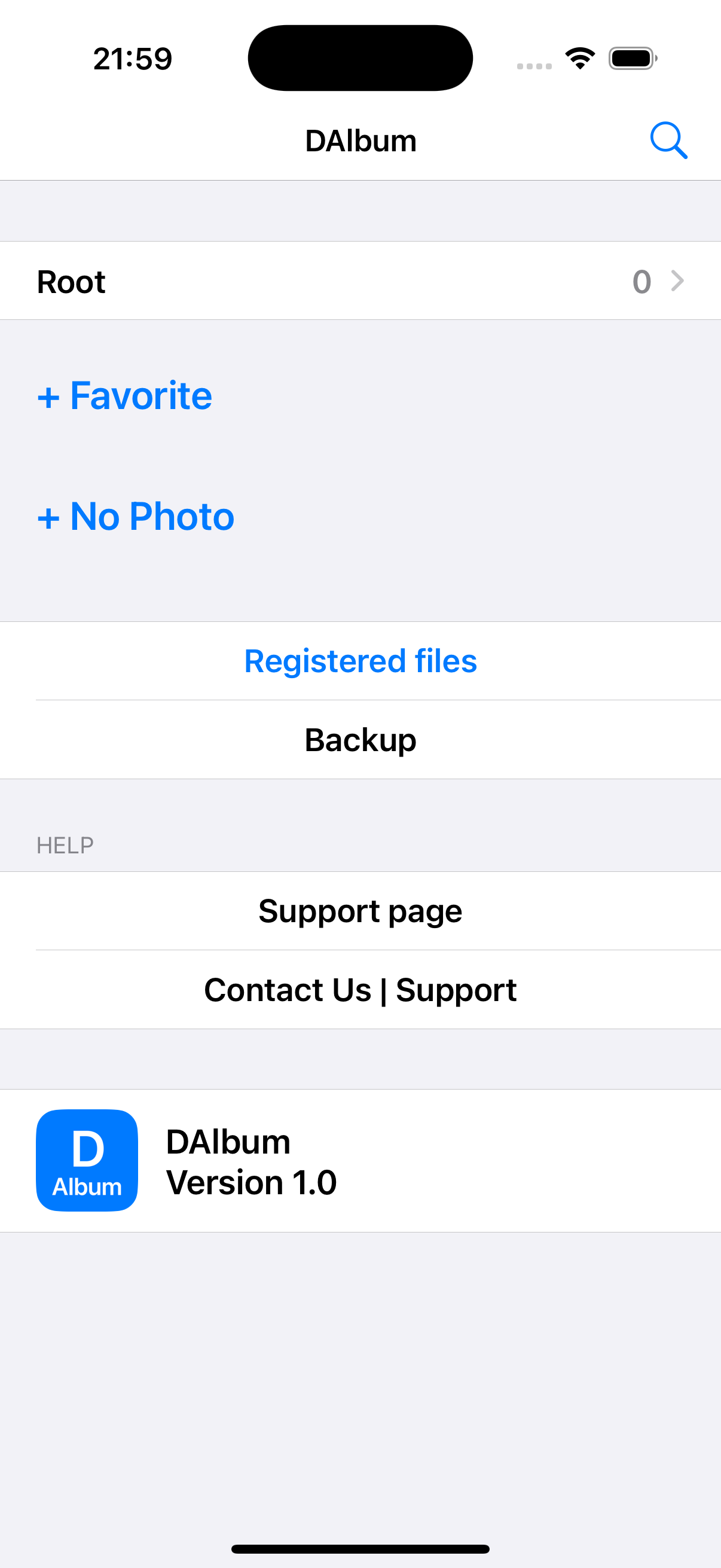
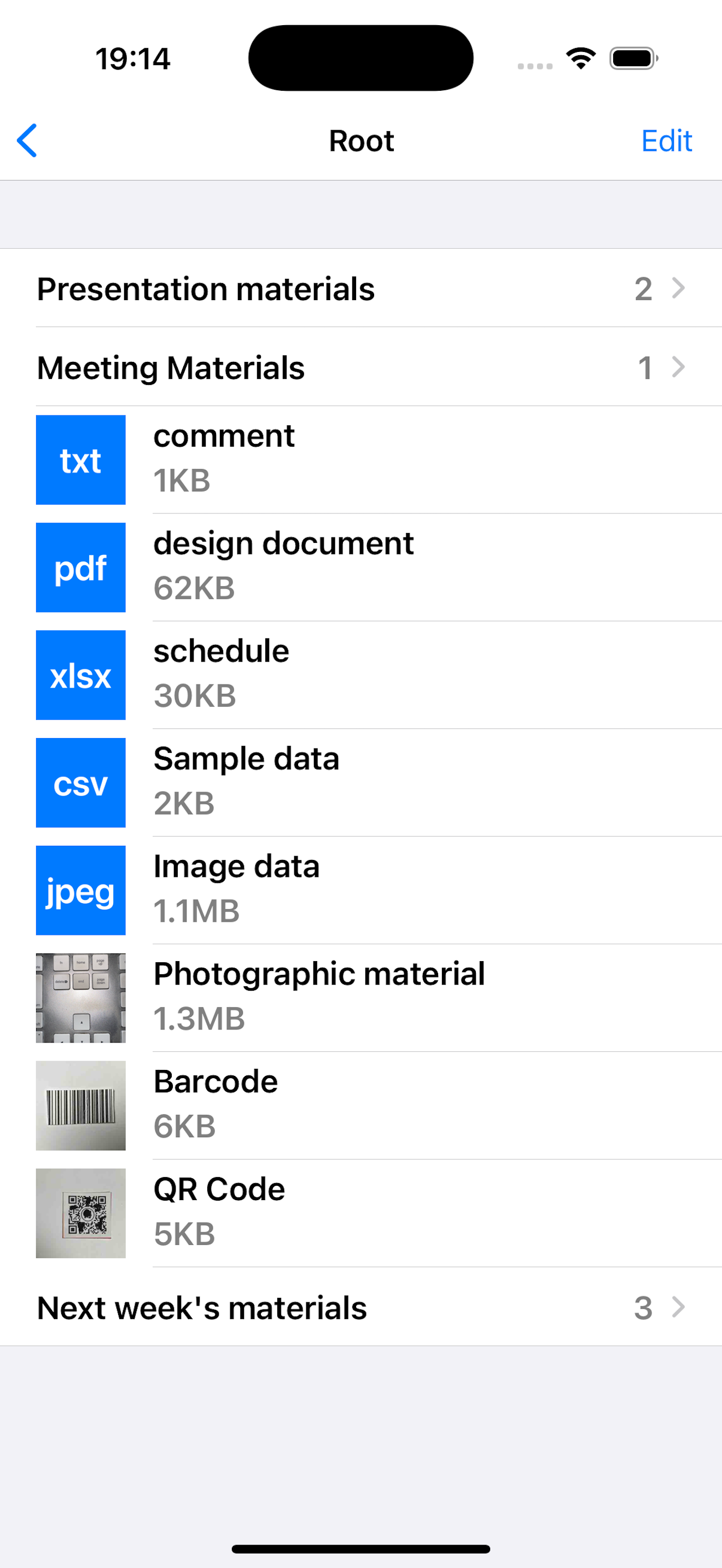
Users organize and save data such as photos and documents (txt, pdf, xls, csv) by group (hierarchy). This allows you to intuitively and quickly open the data you need.
First open "Root", then add groups, photos, text and files.
・Groups can be created without hierarchy restrictions.
・For photos, you specify the size (image quality) at which to save them after taking them.
They are saved with high compression, so they are saved with the minimum file size.
You can resize them even after saving them. (Low image quality → High image quality is not possible)
・To add files, add documents managed in the standard "Files" app.
・You can add photos and documents via the share button from other apps.
・Text can be edited.
The edit screen implements Salculation and Sum functions.
・About photo and document names.
Uppercase and lowercase letters are not distinguished.
"/" cannot be used.
Add Photo
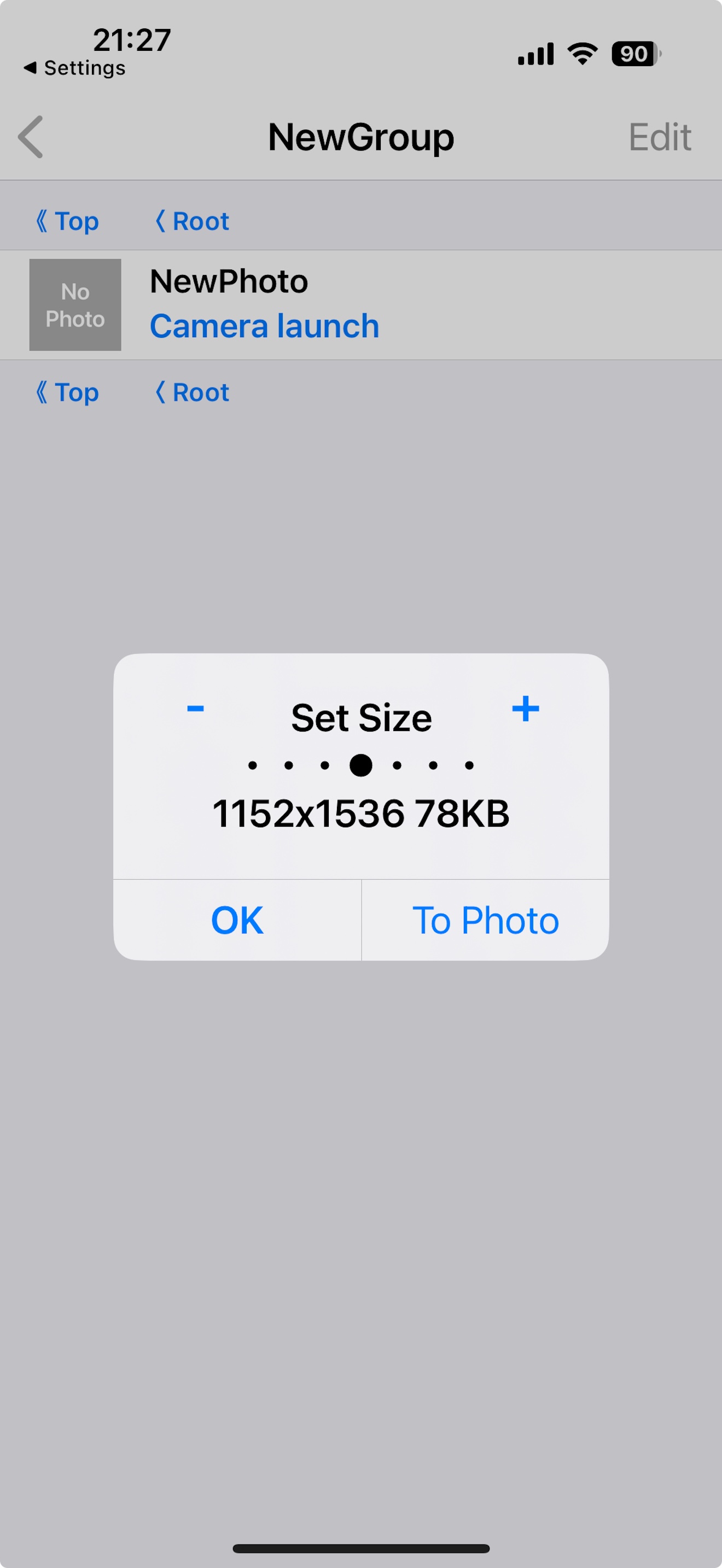
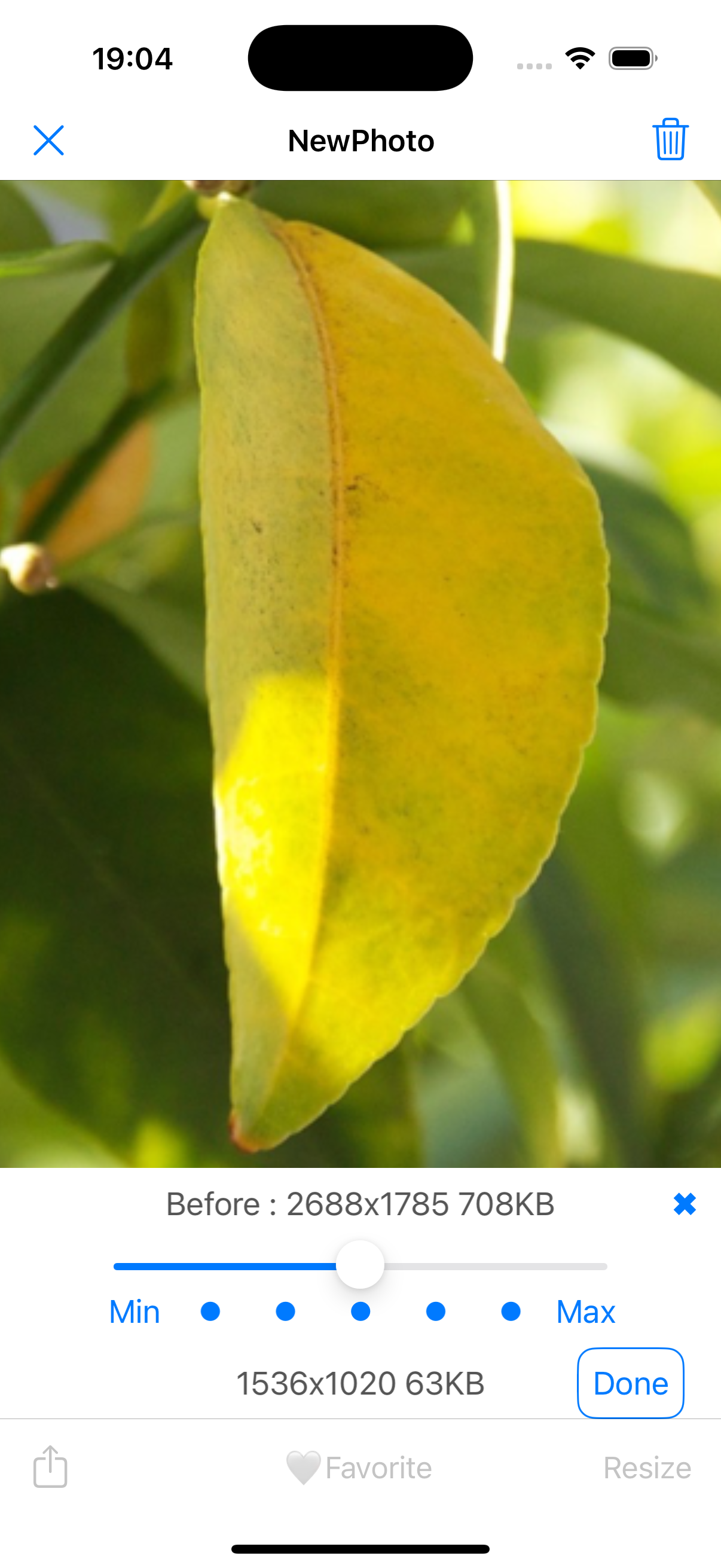
Specify the size (image quality) at which to save the photo after taking it.(Specify with "+" or "-")
They are saved with high compression, so they are saved with the minimum file size.
You can resize them even after saving them.
(Low image quality → High image quality is not possible)
Add File
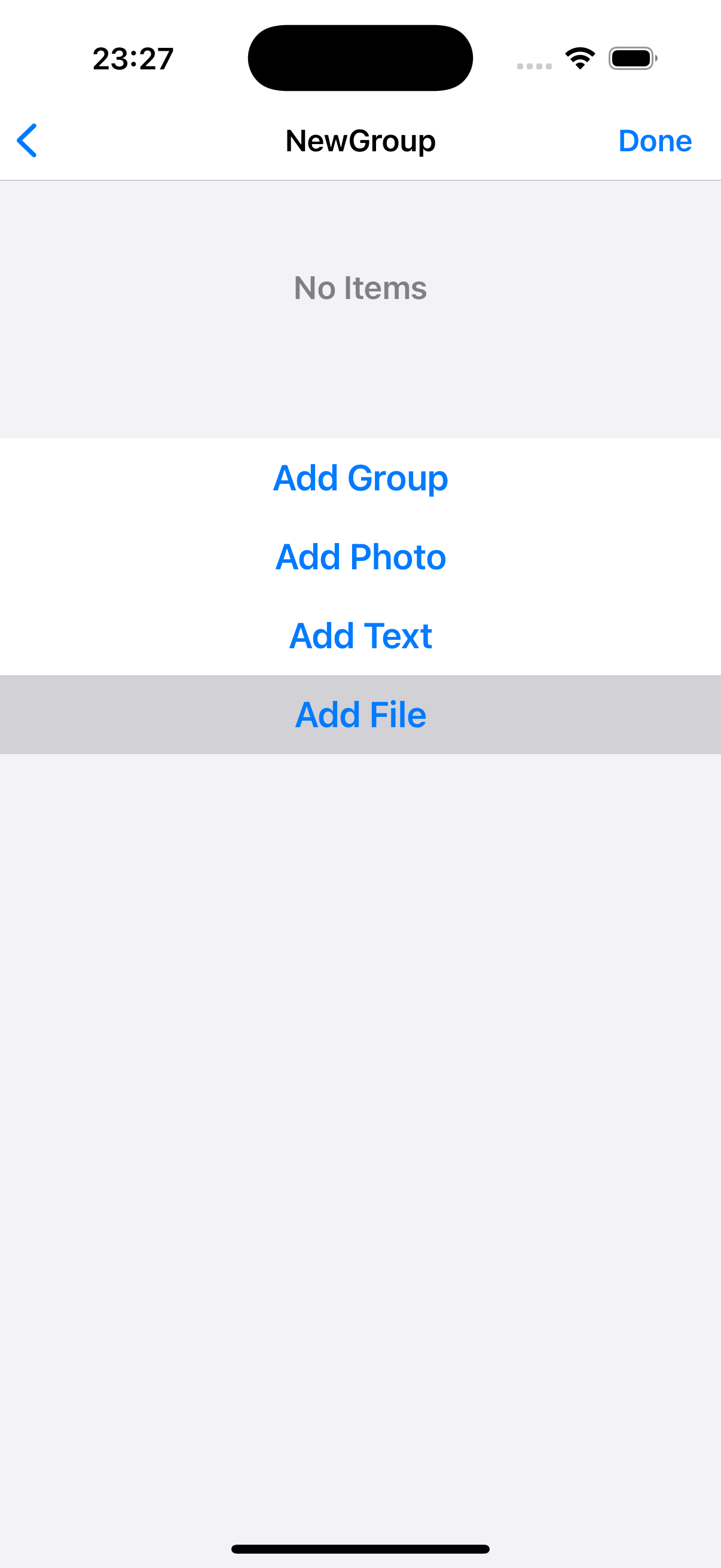
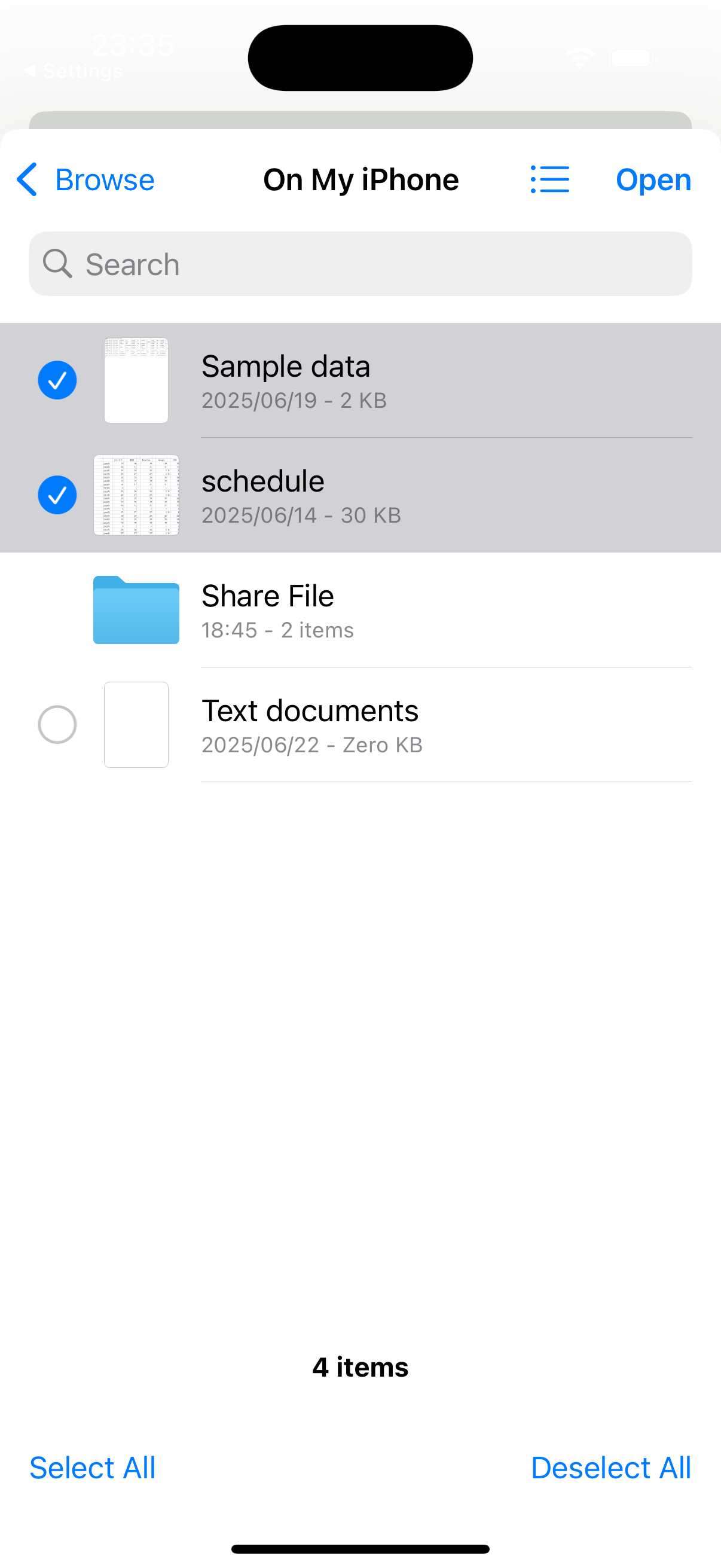
You can add documents managed by the standard "Files" app.
(Multiple files can be selected)
You can also add files from cloud services you have set up on your device.
(iCloud Drive, Google Drive, One Drive, Dropbox, etc)
Add File from other apps
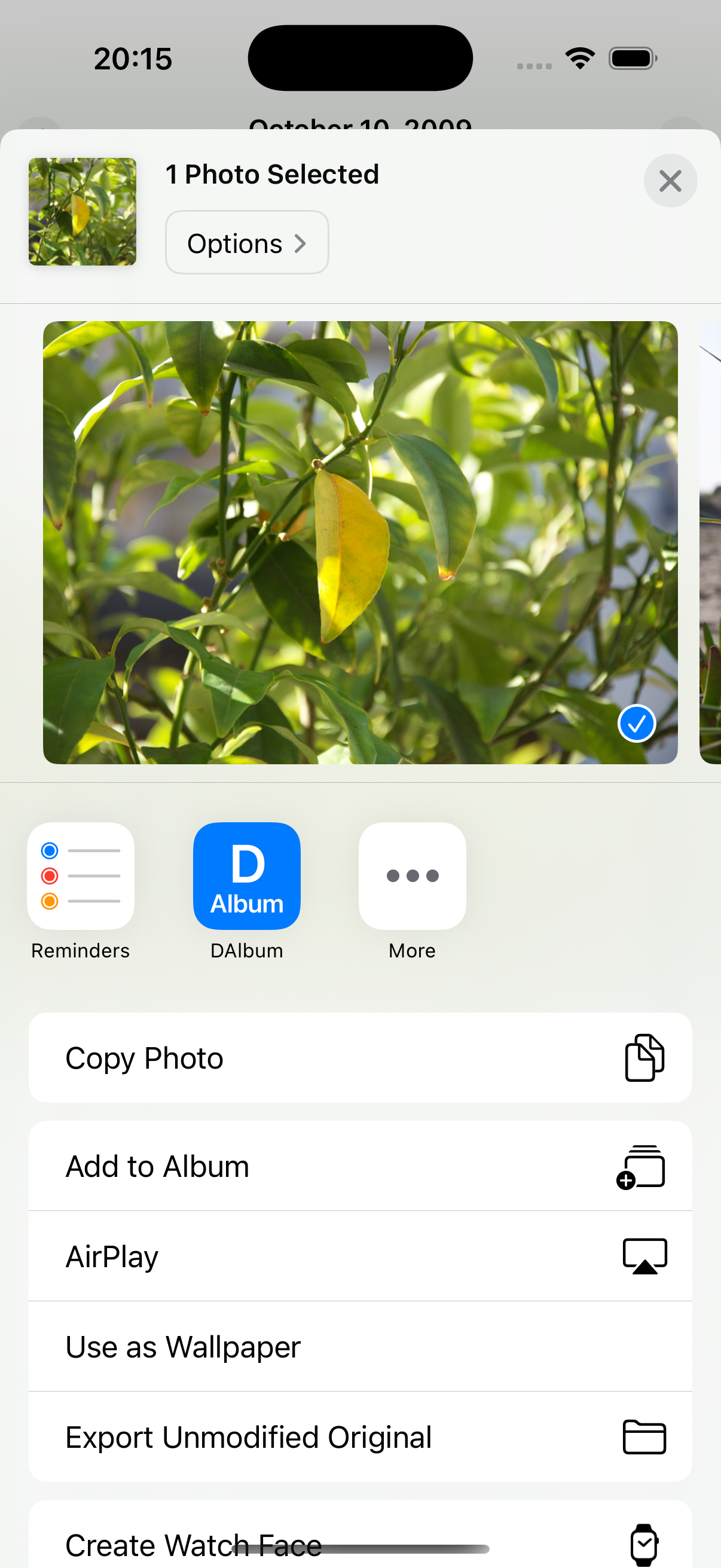
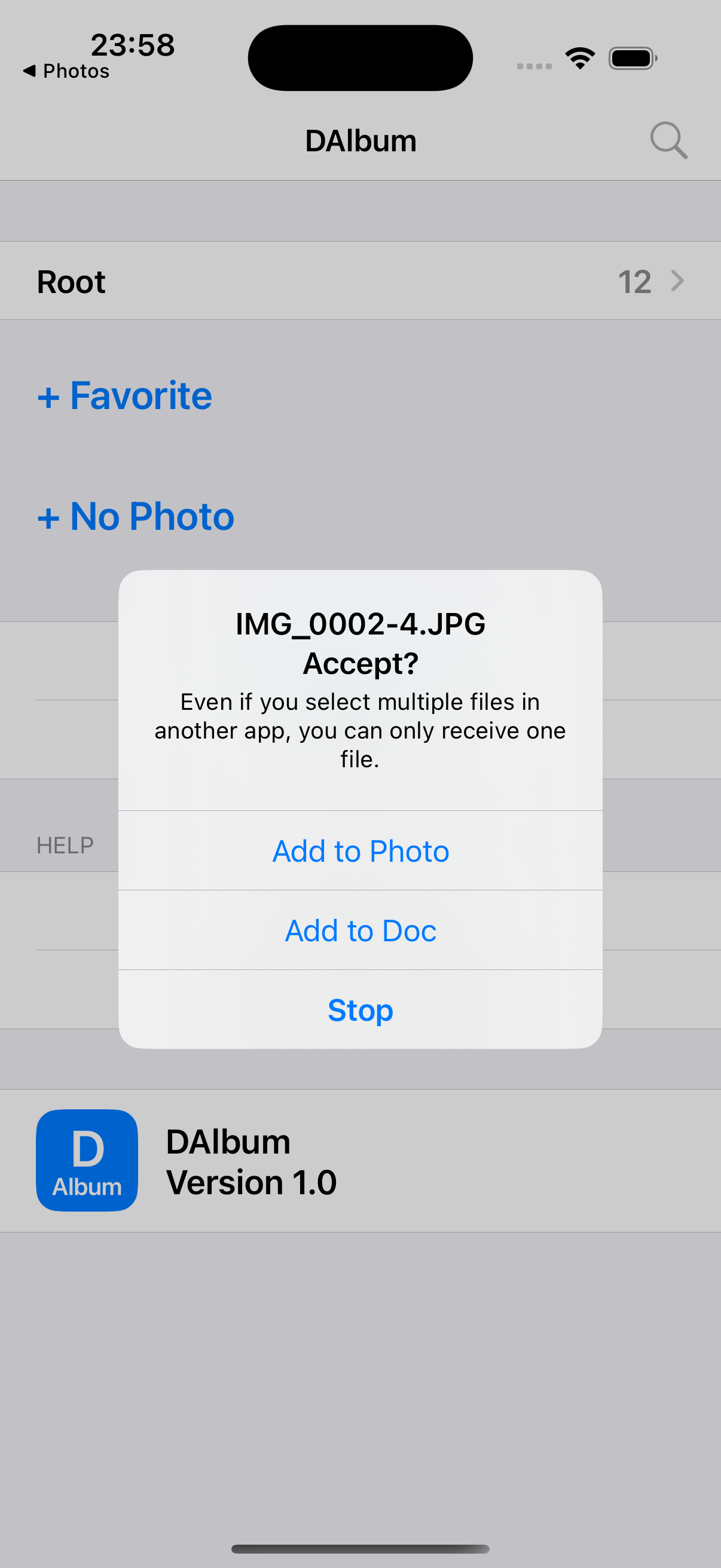
To add file from other apps, follow the steps below.
(1)Tap the Share button in the other app.
(2)Select the "DAlbum" icon on the sharing screen.
(3)After DAlbum is launched, select the photos or documents you want to add and receive them.
Even if you select multiple files in another app, you can only receive one file.
Move a Group

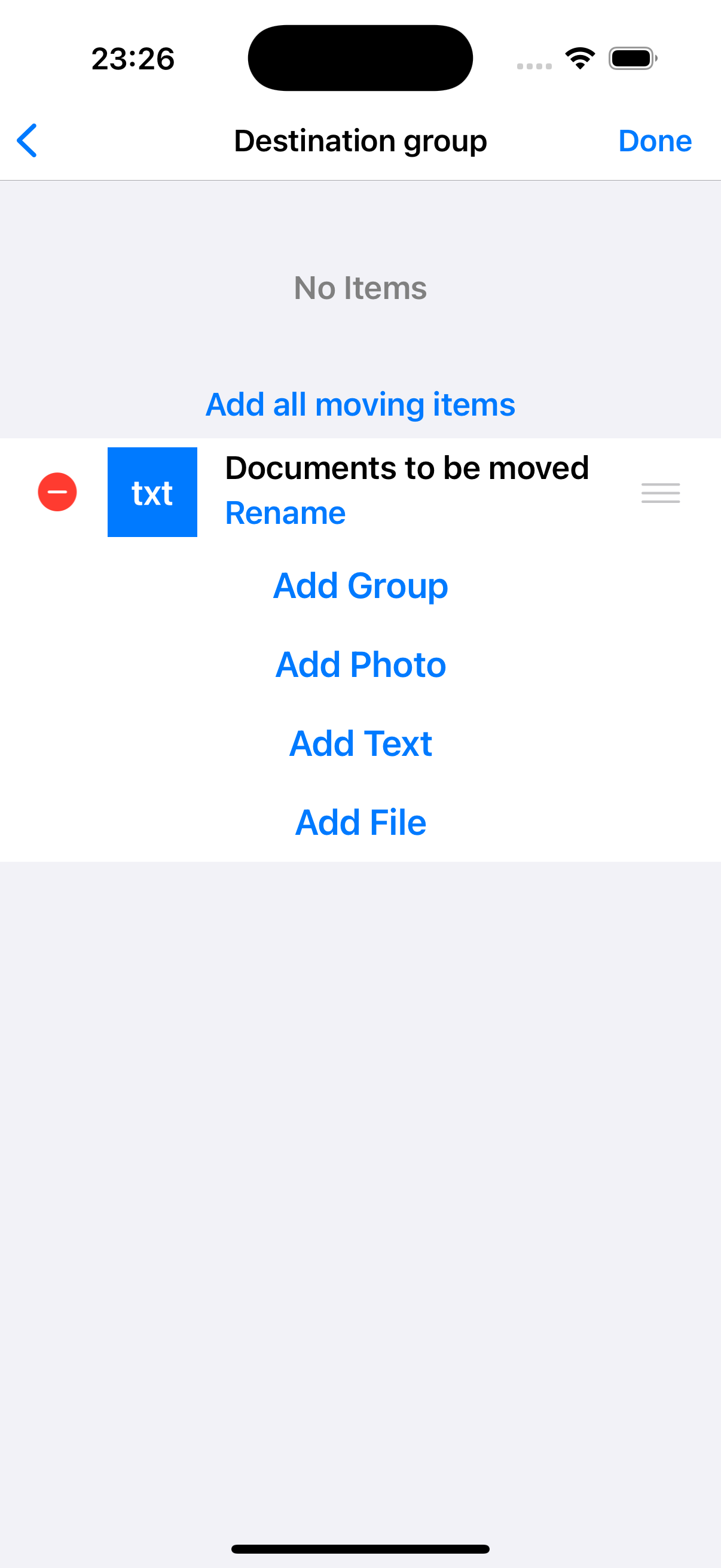
To change the group of saved photos or documents, follow the steps below.
(1) In the source group, move the document you want to move to the second section.
(2) Open the group you want to move.
(3) In the destination group, move the document you want to move back to the first section.
You can move them all back at once by clicking the "Add all items to move" button.
You can also move saved groups. All items registered in the group will be moved at the same time.
Backup / Device change
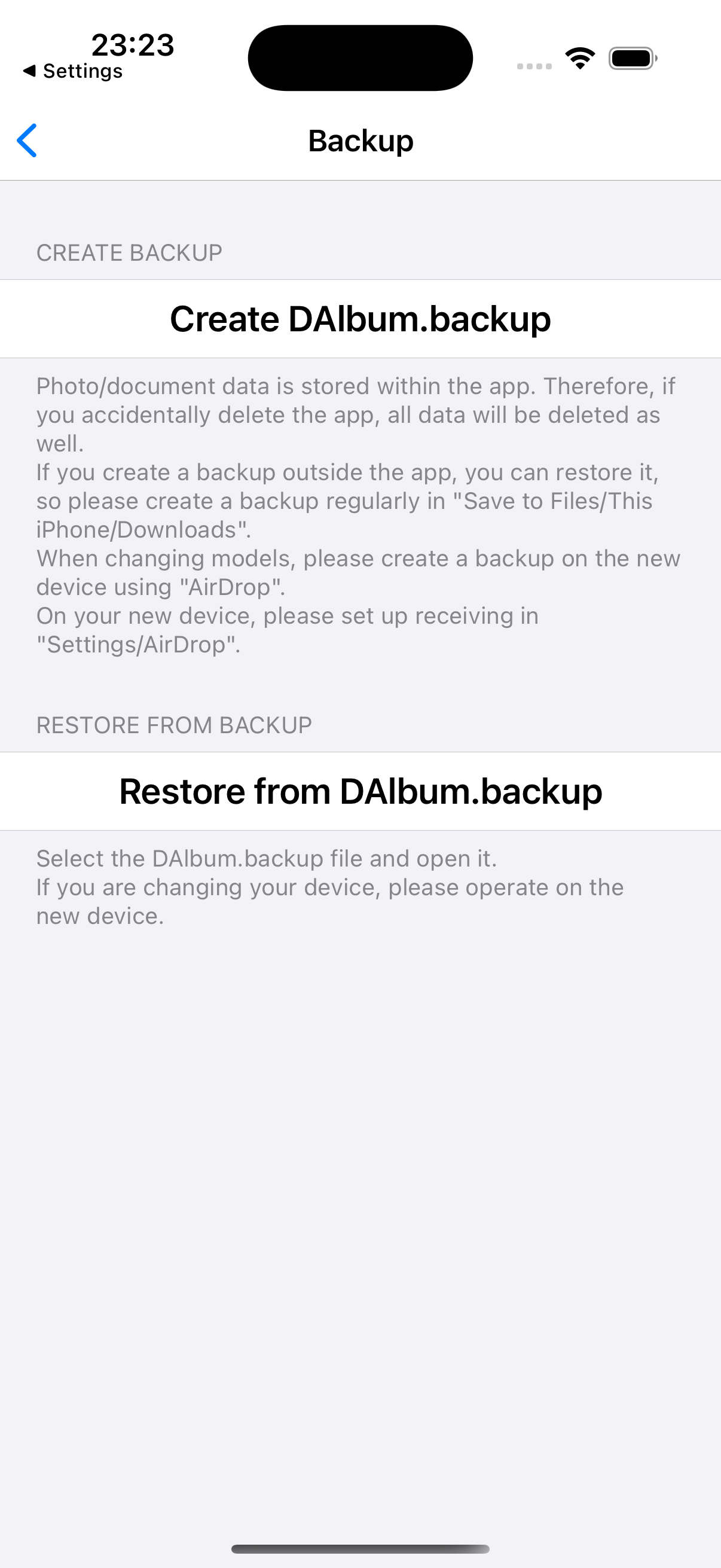
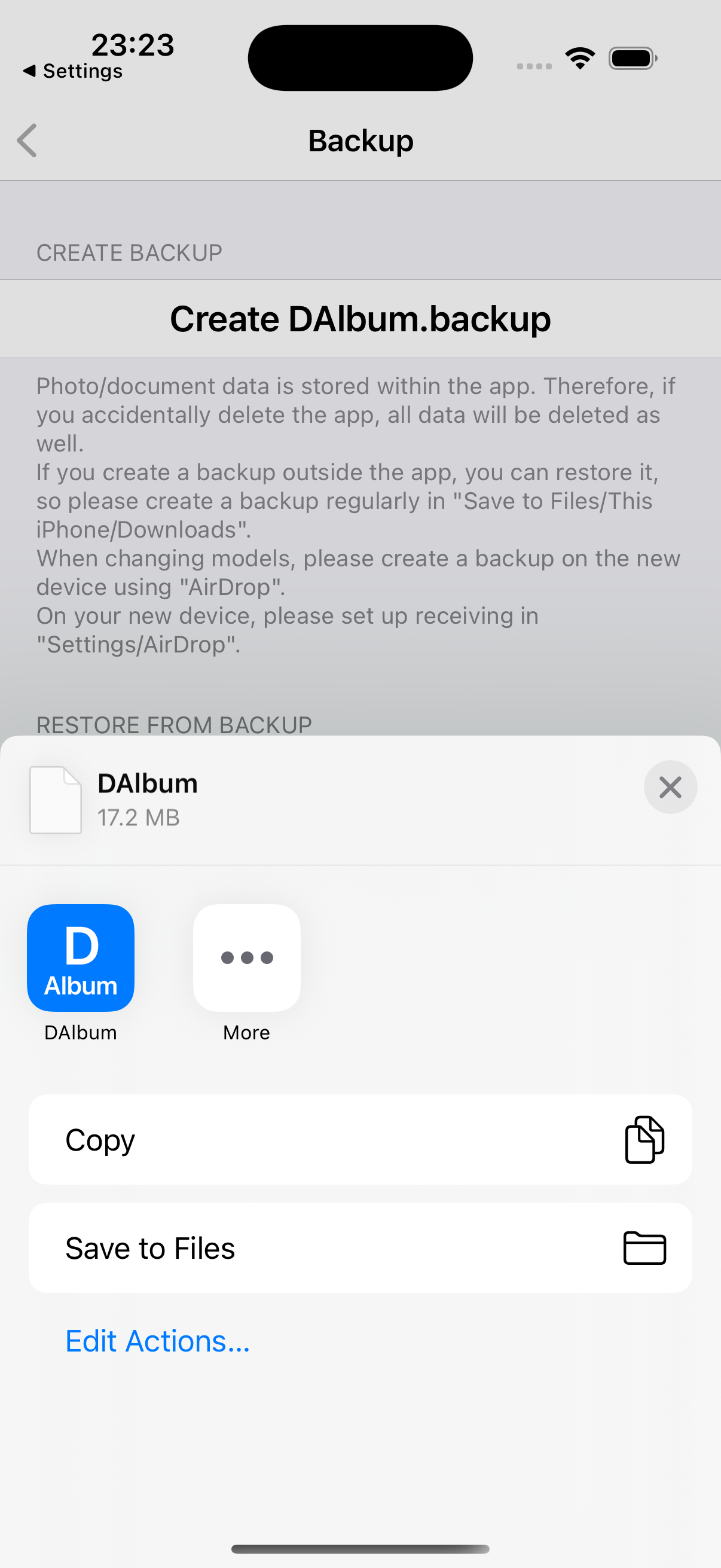
・ Create Backup
Photo/document data is stored within the app. Therefore, if you accidentally delete the app, all data will be deleted as well.
If you create a backup outside the app, you can restore it, so please create a backup regularly in "Save to Files/This iPhone/Downloads".
When changing models, please create a backup on the new device using "AirDrop".
(On your new device, please set up receiving in "Settings/General/AirDrop")
・ Restore from backup
Select the DAlbum.backup file and open it.
If you are changing your device, please operate on the new device.
You can also restore it using the share button in the Files app.
Calculation and Sum functions
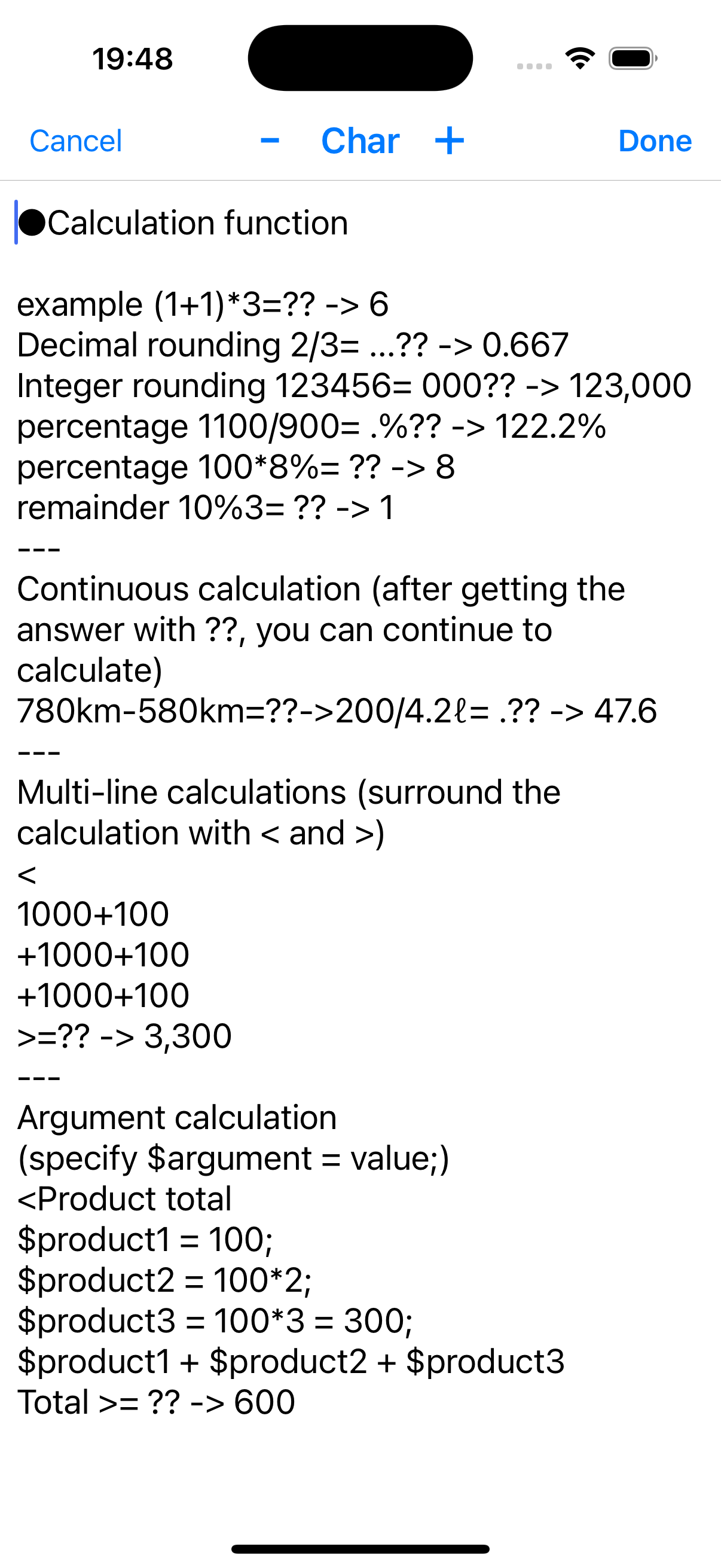
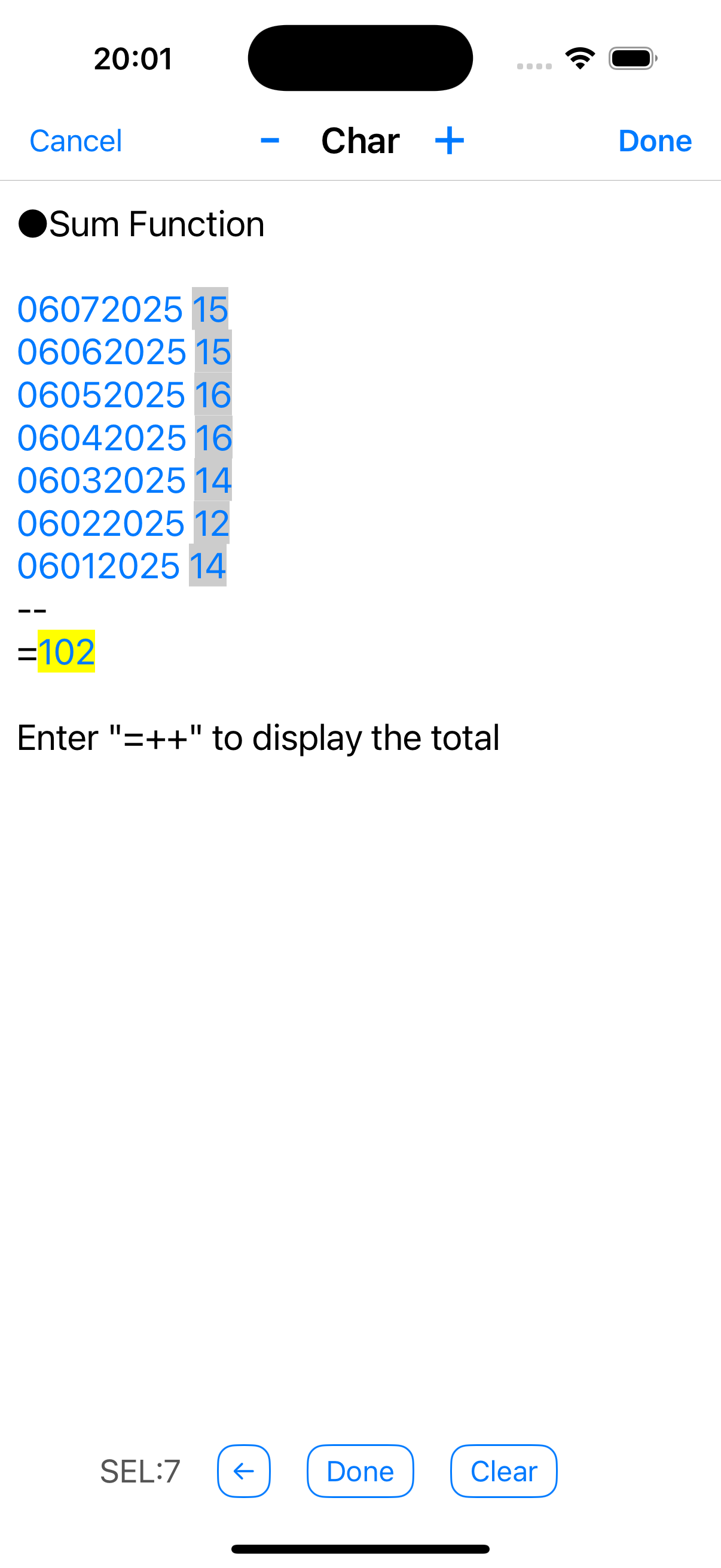
The calculation and Sum functions can be performed on the text (.txt) editing screen.
・ Calculation function
Enter "=??" after the calculation formula to get the answer.
If "=" is full-width, the answer will also be full-width.
If the calculation formula is not valid, no answer will be displayed.
[Caution]
In iOS18, if you enter "=", the answer is converted and you cannot enter "??".
In that case, you can enter it by entering an English character before "=".
(Input example 10+3:=??)
Also, if you turn off iPhone Settings/General/Keyboard/Show calculation results, it will not be converted and you can enter it as usual.
・ Sum function
When you enter "=++", the total of the selected numbers will be displayed.
The number on the far right will be the initial selection. (Press the ← button to move the selection column to the left)
"Select/Deselect" the numbers in the link color.
Tap the "Confirm" button or the "yellow total number" to finish.
Please contact us by email from the app's help "Contact Us | Support".